How to Fix Broken Links and 404 Errors in WordPress
Broken links and 404 errors are common website problems that can frustrate visitors, reduce conversions, and make it harder for users to find important information. If someone clicks a product, blog post, or service page and sees “404 Page Not Found,” they may leave your website without taking action.
The good news is that most broken links and 404 errors can be fixed without rebuilding your website. In this guide, you will learn how to fix broken links and 404 errors in WordPress, identify their causes, use the right tools, and prevent them from happening again.
What Are Broken Links and 404 Errors?
A broken link is a hyperlink that no longer leads to the intended resource. It may point to a deleted page, an incorrect URL, a missing image, or an unavailable external website.
A 404 error is an HTTP status code indicating that the requested page could not be found at that URL. For example, a visitor may open example.com/wordpress-speed-tips/, but the page has been deleted or its URL has changed.
Not every 404 error is a problem. Some URLs may be outdated, intentionally removed, or created by bots. The priority is to fix errors affecting valuable content, backlinks, products, and important customer journeys.
Why Do Broken Links Happen?
Common causes include:
- Deleting or renaming blog posts and pages without redirects.
- Changing WordPress permalink settings.
- Typing incorrect URLs in menus, buttons, or internal links.
- Removing WooCommerce products or changing product slugs.
- Migrating a website to another domain or hosting provider.
- Linking to external websites that have moved or disappeared.
- Incorrect redirect rules or plugin conflicts.
Identifying the cause first helps you select the correct solution instead of applying redirects to every error.
How to Fix Broken Links and 404 Errors in WordPress
1. Find Broken Links on Your Website
Start by identifying the affected URLs. You can use Google Search Console, a website crawling tool, or a WordPress broken link checker.
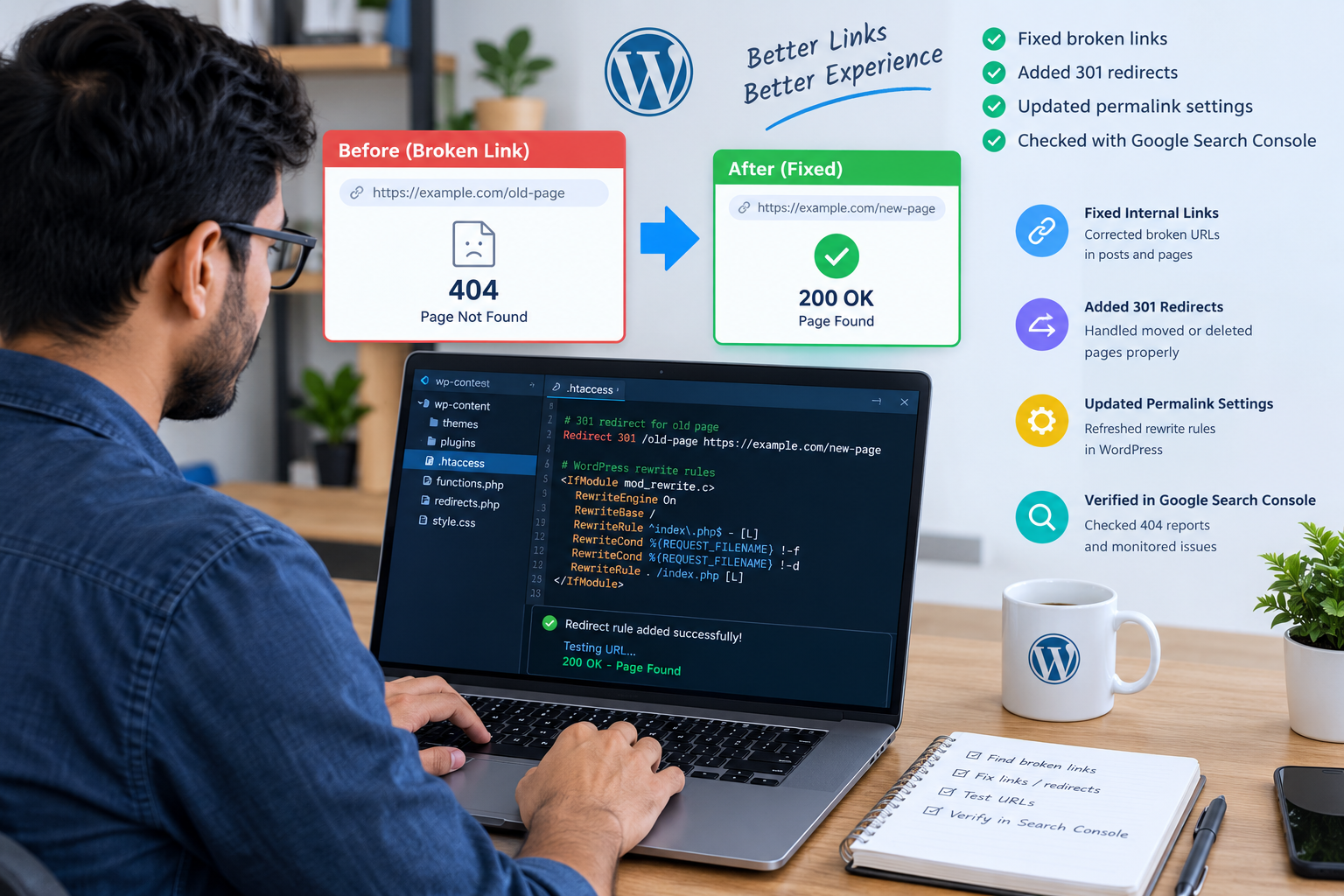
In Google Search Console, open the indexing reports and review pages reported as “Not found (404).” Inspect each URL to determine whether it should exist, has been removed intentionally, or has a replacement.
You can also crawl your website using an SEO tool such as Screaming Frog SEO Spider. This helps identify broken internal links, missing images, and links pointing to error pages.
Important: A reported 404 does not automatically mean you need to redirect it. First check whether the URL has valuable content, backlinks, or traffic.
2. Fix Incorrect Internal Links
Internal links connect pages on your own website. If a blog post links to an incorrect URL, edit the post and replace the broken link with the correct destination.
In WordPress:
- Open your WordPress dashboard.
- Navigate to Posts or Pages.
- Edit the affected content.
- Locate the broken hyperlink.
- Replace it with the correct URL.
- Update the page and test the link.
Check navigation menus, footer links, call-to-action buttons, and Elementor or Kadence Blocks layouts as well.
Correcting the original link is usually better than adding a redirect when the link simply contains a typing mistake.
3. Set Up a 301 Redirect for Moved Pages
A 301 redirect tells browsers and search engines that a page has permanently moved to another URL.
For example:
Old URL: example.com/wordpress-seo-tips/
New URL: example.com/wordpress-seo-guide/
If the new page covers the same topic, redirect the old URL to the new one.
You can manage redirects through a reputable WordPress SEO or redirection plugin, or configure them at the server level if you are comfortable doing so.
Use these guidelines:
- Redirect permanently moved pages to their most relevant replacements.
- Avoid redirecting every missing URL to the homepage.
- Do not create redirect chains when one direct redirect will work.
- Test the old URL to confirm it reaches the intended destination.
A 301 redirect is useful when a page has moved, but it is not a substitute for restoring genuinely missing content.
Choosing the Right Fix
| Problem | Recommended solution | Expected result |
|---|---|---|
| Typo in an internal link | Correct the original link | Link opens the intended page |
| Page permanently moved | Relevant 301 redirect | Visitors reach the replacement |
| Important page deleted accidentally | Restore the page | Original content becomes available |
| Permalink configuration issue | Refresh rewrite rules and investigate | Existing URLs may work again |
| Page intentionally removed with no replacement | Keep a useful 404 or appropriate 410 response | Visitors and search engines receive an accurate signal |
4. Fix WordPress Permalink Problems
Sometimes WordPress displays 404 errors even though the page or post still exists. This can happen because of incorrect rewrite rules or permalink configuration.
To troubleshoot:
- Open Settings → Permalinks in WordPress.
- Review your current permalink structure.
- Click Save Changes without unnecessarily changing the structure.
- Test the affected pages again.
Saving the settings can refresh WordPress rewrite rules. If the problem continues, check server rewrite configuration, caching, security rules, and recent plugin changes.
Before making major server-level changes, create a backup.
Methods for Finding Broken Links
Different tools are useful for different types of websites.
| Method | Best use | Main limitation |
|---|---|---|
| Google Search Console | Discovering URLs Google reports as missing | Not a complete live crawl of every link |
| WordPress link checker | Reviewing links within WordPress | May use server resources or require paid features |
| Screaming Frog SEO Spider | Crawling internal links and identifying errors | Large crawls may require more resources |
| Manual testing | Checking critical pages and customer journeys | Time-consuming for large websites |
5. Restore Missing Pages or Products
If an important page was deleted accidentally, restoring it from a backup may be the best option.
For WooCommerce stores, check whether the missing product still exists in the dashboard, whether its slug changed, and whether the product has been set to draft or private.
If the product is permanently discontinued, redirect the old URL to a genuinely similar product or relevant category when appropriate. If no suitable replacement exists, a helpful 404 page may be the better choice.
6. Improve Your 404 Error Page
A useful 404 page helps visitors recover instead of leaving your website.
Include:
- A clear message explaining that the page could not be found.
- A search box.
- Links to important categories or popular articles.
- A link to the homepage.
- Contact information or support options where appropriate.
For an online store, you can also feature popular products or product categories.
Keep the design consistent with your brand and make sure the page works on mobile devices.
7. Clear Caches and Test Your Fixes
After updating links, redirects, or permalink settings, clear the relevant WordPress, server, CDN, and browser caches.
If your website uses LiteSpeed Cache or Cloudflare, cached responses may temporarily show outdated results.
Test the affected URLs in a private browser window. Confirm that important pages return the expected status code, redirects reach the correct destination, and internal links no longer point to missing pages.
Finally, run another crawl to verify the fixes.
Broken Link Repair Workflow
| Stage | Action | Completion check |
|---|---|---|
| Discover | Crawl the website and review Search Console | A list of affected URLs is ready |
| Diagnose | Identify the cause of each error | Each URL has an appropriate solution |
| Repair | Update links, restore content, or add redirects | The selected fix is implemented |
| Validate | Test URLs and crawl again | Important errors are resolved |
| Monitor | Review new errors periodically | Newly appearing issues are addressed |
How Broken Links Affect SEO and Conversions
Broken links can waste visitors’ time and interrupt navigation. If a broken URL receives organic visits or valuable backlinks, fixing it may help users and search engines discover the intended content.
However, fixing every 404 does not guarantee higher rankings. Search engines can handle legitimate missing URLs, and not all errors affect SEO performance equally.
Prioritize pages with meaningful traffic, external backlinks, internal links, sales value, or a clear replacement. Monitor organic traffic, conversions, crawl reports, and the number of unresolved important errors.
How to Prevent Broken Links in the Future
Use this simple maintenance routine:
- Audit your website after major redesigns or migrations.
- Check internal links after changing page slugs.
- Review 404 reports in Google Search Console.
- Test important pages after plugin and theme updates.
- Back up your website before making structural changes.
- Monitor redirects and remove unnecessary redirect chains.
- Check product links and checkout journeys regularly.
For business websites and WooCommerce stores, a monthly review is a useful starting point. High-traffic websites or frequently updated stores may need more frequent checks.
Broken links and 404 errors are manageable when you identify their causes and apply the right solutions. Correct inaccurate links, use relevant 301 redirects for permanently moved pages, restore important missing content, and troubleshoot WordPress permalink issues when necessary.
Most importantly, test every fix and monitor your website regularly. A well-maintained website makes it easier for visitors to find information, supports a smoother customer experience, and helps search engines understand your content.
If your WordPress website has persistent 404 errors, redirect problems, or broken navigation, a professional website audit can help identify the underlying issues and provide a clear repair plan.