Why Your WordPress Contact Form Is Not Sending Emails
Have you ever received a message from a visitor saying they submitted your contact form, but you never received the email? This is a common problem that can affect WordPress websites, business owners, freelancers, and online stores.
When your WordPress contact form is not sending emails, you might miss customer inquiries, project requests, support questions, and potential sales opportunities. The form may appear to work correctly, but the notification never reaches your inbox.
The good news is that this problem can often be resolved by checking your form settings, configuring SMTP, verifying your domain’s email records, and testing email delivery.
In this guide, you will learn why WordPress contact forms fail to send emails and how to troubleshoot the problem step by step.
Incorrect Contact Form Email Settings
One of the first things to check is your contact form’s notification settings. A small mistake in the recipient email address or sender configuration can prevent messages from reaching the correct inbox.
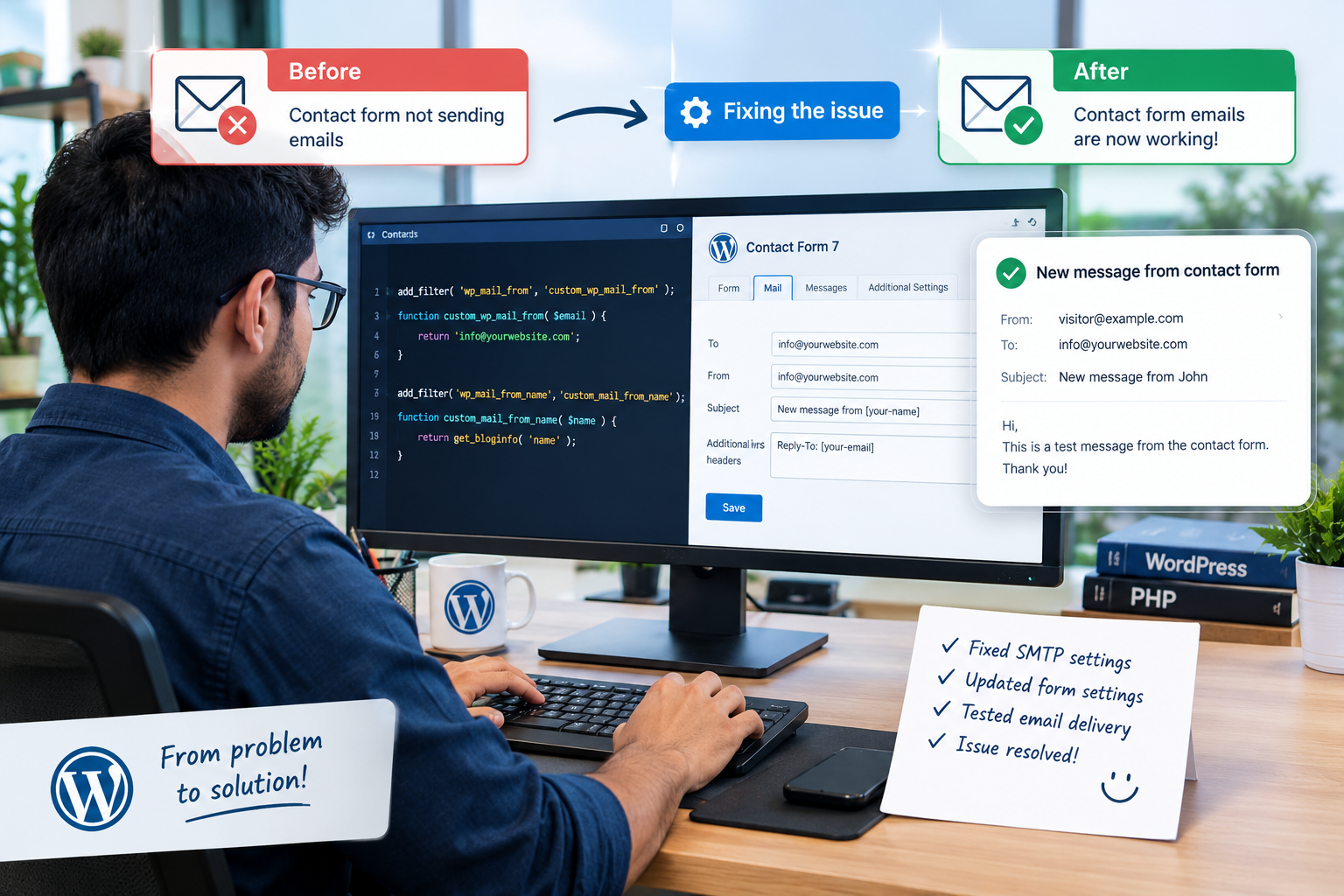
For example, if your form uses Contact Form 7, open your WordPress dashboard and navigate to Contact → Contact Forms. Select your form and open the Mail tab.
Check these settings:
- To: The email address that should receive form submissions.
- From: An email address associated with your website’s domain.
- Subject: A clear subject line for incoming messages.
- Additional headers: A valid Reply-To address, if required.
Avoid using the visitor’s email address directly in the From field. Instead, use a domain-based sender address, such as [email protected], and place the visitor’s email in the Reply-To field.
This helps prevent sender authentication problems.
WordPress Uses PHP Mail Instead of Reliable SMTP
WordPress commonly relies on the server’s configured mail functionality when sending messages through its default email system. Some hosting providers restrict this functionality, and messages sent this way may be rejected or filtered.
A more reliable approach is to configure SMTP (Simple Mail Transfer Protocol) through a trusted email provider.
SMTP authenticates your website with an email service before sending messages. Depending on your provider, you may also be able to review email logs and delivery errors.
How to configure SMTP
- Choose a reputable SMTP plugin, such as WP Mail SMTP.
- Install and activate it from your WordPress dashboard.
- Select a supported mailer, such as your business email provider or an email delivery service.
- Follow the provider’s authentication instructions.
- Configure the sender address and any required domain verification.
- Send a test email and confirm that it arrives.
Never share SMTP passwords, API keys, or other email credentials publicly.
How SMTP Can Improve Email Reliability
Illustrative comparison, not measured industry data. Actual delivery rates depend on configuration, sender reputation, and recipient filtering.
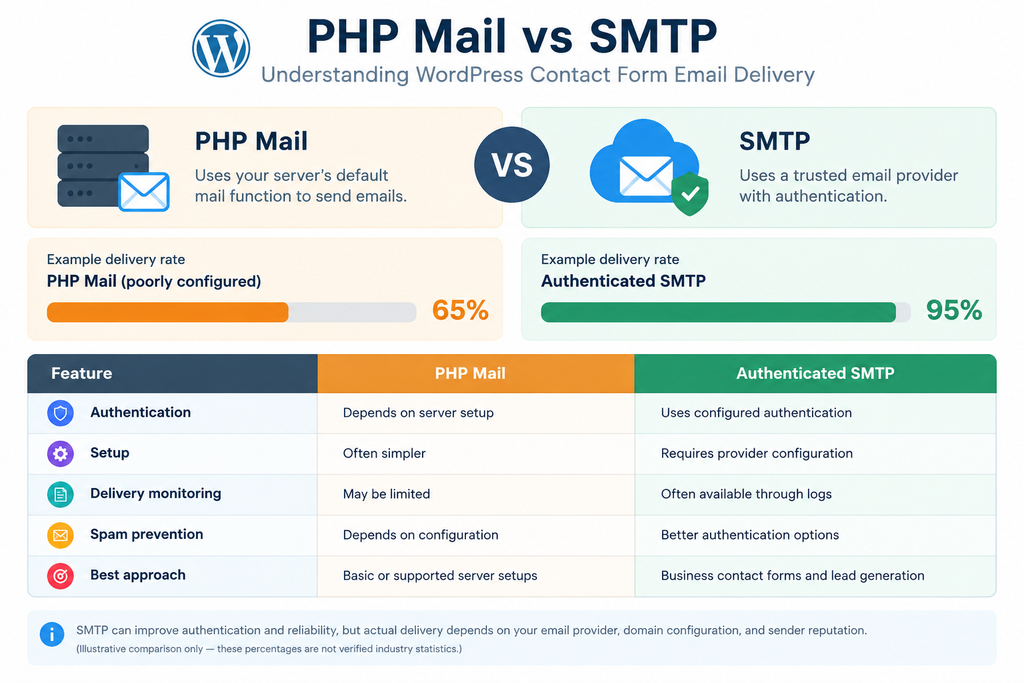
Illustrative comparison, not measured industry data. Actual delivery rates depend on configuration, sender reputation, and recipient filtering.
The figures above illustrate a possible difference, not a guaranteed result. SMTP improves authentication and sending reliability, but it cannot guarantee inbox placement.
3. Emails Are Going to Spam
Sometimes your contact form sends emails successfully, but the recipient’s email provider places them in the spam or junk folder.
This can happen when the sender domain is not properly authenticated, the sender address looks suspicious, or the sending domain has a poor reputation.
To improve email deliverability:
- Check the Spam and Junk folders.
- Use a consistent domain-based sender address.
- Configure SPF and DKIM records as instructed by your email provider.
- Configure DMARC to establish a suitable email authentication policy.
- Avoid misleading subject lines and suspicious links.
- Test messages with more than one recipient mailbox.
SPF identifies authorized sending servers, DKIM adds a cryptographic signature, and DMARC specifies how receiving servers should handle messages that fail authentication checks.
Your Hosting Provider Blocks Email Sending
Some web hosting companies limit outgoing email to reduce spam. Your server may also have incorrect mail settings or restrictions on outbound connections.
If your SMTP plugin displays a connection or authentication error, check the following:
- Confirm the SMTP host and port with your provider.
- Verify the encryption method required by the service.
- Check the username and credentials.
- Contact your hosting provider to confirm whether outgoing email connections are permitted.
- Review the email provider’s logs for rejected messages.
Do not change server ports or firewall rules without confirming the correct settings with your hosting or email provider.
A Contact Form Plugin Is Misconfigured
A contact form can have separate settings for successful submissions, email notifications, and validation. A form might display a success message even though its notification email fails later.
Common examples include Contact Form 7, WPForms, Fluent Forms, and Gravity Forms.
Check whether the form contains the correct recipient address and whether the notification feature is enabled. Then submit a test message using valid information.
If you recently updated a plugin, temporarily test for a conflict on a staging site. Deactivate plugins one at a time and check whether the issue changes. Also test with a default theme if necessary.
Avoid disabling security or caching features on a live business website without a safe testing plan.
DNS Records Are Incorrect
Incorrect DNS records can affect your ability to send authenticated emails from your domain.
Check the DNS settings recommended by your email service. Depending on the service, you may need to configure SPF, DKIM, and DMARC records.
Be careful when editing SPF records. A domain should generally have one valid SPF policy rather than several separate SPF TXT records. Follow your provider’s instructions to combine authorized senders correctly.
After making DNS changes, allow time for the records to propagate and verify them using a reputable DNS or email authentication checker.
How to Troubleshoot WordPress Email Delivery Issues
Follow this checklist to identify the cause systematically.
Email Troubleshooting Workflow
Start with the simplest checks before making server-level changes. If your SMTP test fails, investigate the reported error. If the test succeeds but form notifications fail, focus on the contact form’s configuration and notification rules.
| Potential cause | Example share |
|---|---|
| SMTP or mail configuration | 35% |
| Spam filtering or authentication | 25% |
| Form notification settings | 20% |
| Hosting restrictions | 12% |
| Plugin conflicts or other issues | 8% |
Use this chart as a sample framework for prioritizing checks, not as evidence that these are the actual proportions of WordPress email failures.
Test Your Contact Form After Fixing the Problem
Once you have made the necessary changes, submit a test message and verify the entire process.
Confirm that:
- The form accepts valid submissions.
- The expected notification arrives in the correct inbox.
- The message does not go to spam.
- The Reply-To address works.
- SMTP logs show successful sending.
- Any autoresponder or customer confirmation email also works.
If your website receives business inquiries, periodically retest the form after major WordPress, theme, or plugin updates.
When your WordPress Contact Form Is Not Sending Emails, the cause may be incorrect form settings, unreliable PHP mail, missing email authentication, hosting restrictions, or a plugin conflict.
Start by checking your notification settings, then configure authenticated SMTP and verify your domain’s email records. Finally, test both the contact form and the email delivery process.
A properly configured contact form helps you respond to visitors, protect potential leads, and maintain a professional website experience.
If you cannot identify the cause, a WordPress developer can inspect the form configuration, SMTP logs, hosting settings, and plugin conflicts to find and resolve the issue.
Need help fixing your WordPress contact form? Get your website checked so you can receive customer inquiries reliably.