How to Diagnose WooCommerce Payment Gateway Errors
Online payments are one of the most important parts of an eCommerce website. Customers expect a smooth checkout experience when purchasing products from your WooCommerce store. However, payment gateway errors can interrupt transactions, prevent successful orders, and create frustration for customers.
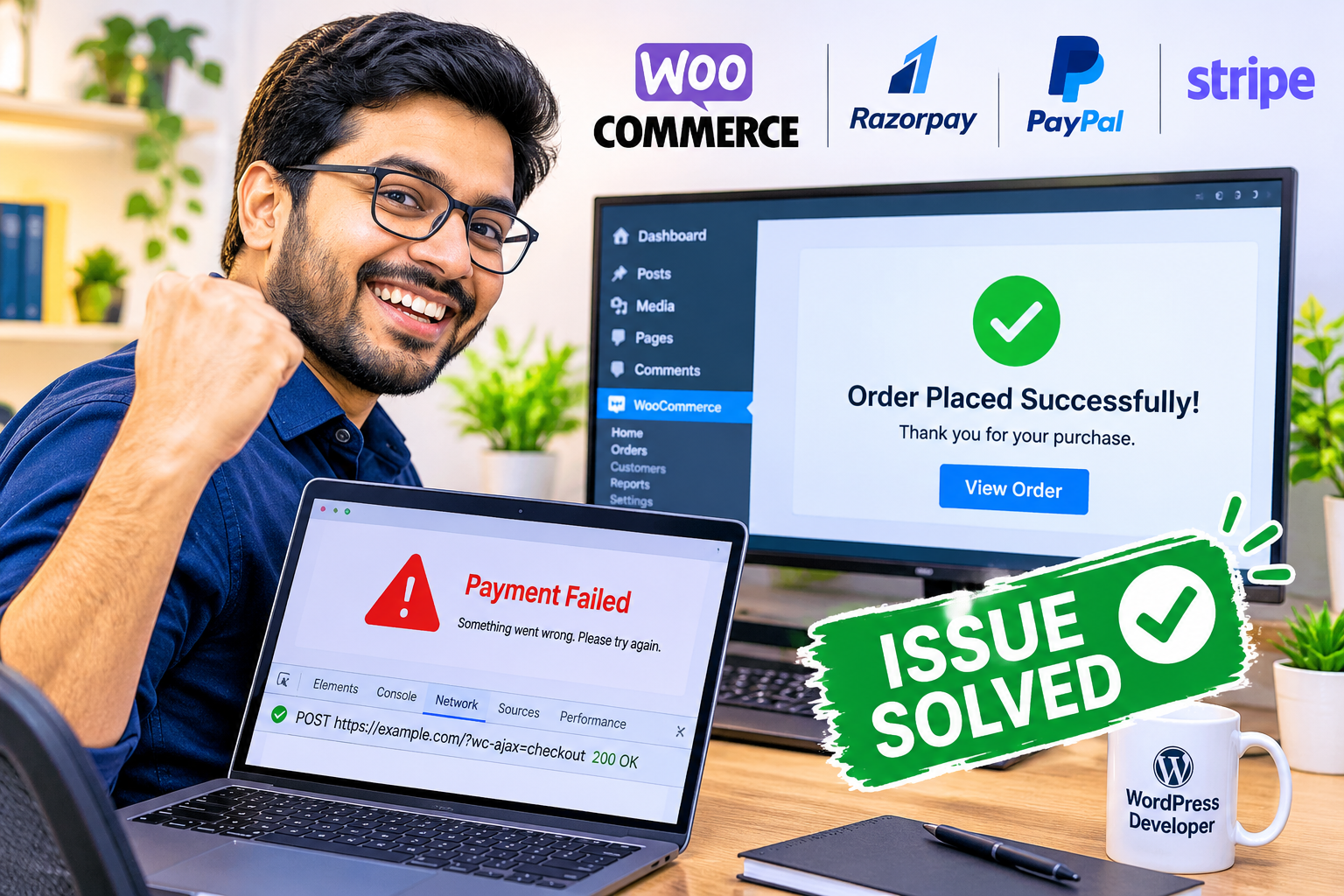
Imagine a customer adding products to their shopping cart, entering their billing information, and clicking the Place Order button. Instead of receiving a confirmation message, they see an error such as “Payment Failed,” “Something Went Wrong,” or “Unable to Process Payment.”
This situation can result in abandoned carts and lost sales.
WooCommerce payment gateway errors can happen for several reasons, including incorrect API credentials, plugin conflicts, server configuration problems, JavaScript errors, SSL certificate issues, and payment gateway connection failures.
In this guide, you will learn how to diagnose common WooCommerce payment problems, identify their causes, and troubleshoot checkout errors step by step.
1. Understand Common WooCommerce Payment Gateway Errors
Before fixing a payment issue, you need to understand what type of error is occurring.
Different payment gateways may display different error messages depending on the problem.
Some common WooCommerce payment errors include:
- Payment failed or declined.
- Invalid API credentials.
- Unable to connect to payment gateway.
- Payment processing error.
- Checkout button not responding.
- Payment successful but order remains pending.
- Payment gateway option missing at checkout.
- Unexpected server response.
These errors can originate from the payment provider, WooCommerce settings, hosting environment, or another WordPress plugin.
The first step is identifying exactly where the transaction fails.
2. Check WooCommerce Payment Gateway Settings
Incorrect payment gateway settings are one of the most common reasons for payment failures.
Start by reviewing your payment gateway configuration.
Steps to follow:
- Log in to your WordPress dashboard.
- Navigate to WooCommerce → Settings.
- Open the Payments tab.
- Select the payment gateway experiencing problems.
- Verify that the gateway is enabled.
- Check the API keys, merchant ID, and other required credentials.
- Save the settings and test the checkout process.
For example, if you are using Razorpay, verify that the Key ID and Key Secret match the credentials in your Razorpay dashboard.
If you are using Stripe or PayPal, check that the correct account credentials and payment modes are configured.
Important: Never share your live API secret keys publicly or paste them into support requests.
3. Verify API Credentials and Test Mode
Payment gateways usually provide separate credentials for testing and live transactions.
A common configuration mistake is using test credentials while the website is accepting real customer payments.
Check the following:
- Is test mode enabled accidentally?
- Are the API credentials correct?
- Are the credentials connected to the correct merchant account?
- Has the payment gateway account completed its verification requirements?
- Are webhook URLs configured correctly?
Test transactions should be completed using the gateway’s official test environment. Do not use real customer card details for troubleshooting.
4. Check WooCommerce System Status and Error Logs
WooCommerce provides useful diagnostic information through its System Status and logging tools.
Navigate to:
WooCommerce → Status
Review the following information:
- WordPress version.
- WooCommerce version.
- PHP version.
- Server environment.
- Active plugins.
- Database information.
- PHP memory limit.
Next, check payment gateway logs.
Navigate to:
WooCommerce → Status → Logs
Select the relevant payment gateway log file from the dropdown.
Look for errors containing messages such as:
- Authentication failed.
- Invalid signature.
- API connection timeout.
- Webhook verification failed.
- Payment authorization declined.
These messages can help identify whether the problem comes from WooCommerce, the payment provider, or the hosting server.
Always remove customer information, tokens, and secret credentials before sharing logs.
5. Diagnose Plugin Conflicts
Plugin conflicts can cause unexpected checkout problems.
For example, a caching plugin, security plugin, checkout customization plugin, or JavaScript optimization feature may interfere with payment gateway scripts.
Follow this troubleshooting process:
- Create a complete website backup.
- Use a staging website whenever possible.
- Temporarily disable non-essential plugins on staging.
- Test the checkout process.
- Reactivate plugins one at a time.
- Identify which plugin causes the problem.
- Check for an update or contact the plugin developer.
Pay particular attention to:
- LiteSpeed Cache
- Cloudflare integrations
- CartFlows
- Checkout customization plugins
- Security and firewall plugins
- Currency switcher plugins
For example, JavaScript delay or combination features may interfere with payment buttons or checkout scripts.
Do not disable security protection or caching on a live store without understanding the impact.
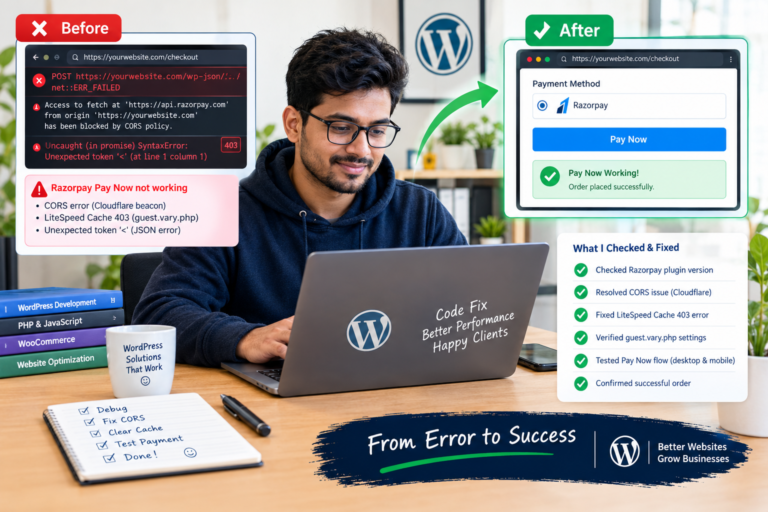
6. Inspect Browser Console and Network Errors
Sometimes the payment gateway is configured correctly, but the checkout page contains JavaScript errors.
You can investigate these issues using Chrome or Firefox Developer Tools.
How to inspect browser errors:
- Open your WooCommerce checkout page.
- Right-click and select Inspect.
- Open the Console tab.
- Look for red error messages.
- Open the Network tab.
- Attempt a test checkout.
- Check for failed requests, especially HTTP 400, 403, 404, and 500 responses.
Common problems include:
- JavaScript errors.
- CORS policy restrictions.
- Blocked payment scripts.
- REST API failures.
- AJAX checkout errors.
- Failed webhook-related requests.
The Network tab helps you understand whether the browser can communicate with the website and external payment services.
7. Check SSL Certificates and Server Configuration
Payment gateways require secure communication between your website and payment provider.
Your website should have a valid SSL certificate and use HTTPS.
Check these technical settings:
- SSL certificate validity.
- HTTPS redirects.
- PHP compatibility.
- Required PHP extensions.
- Outgoing HTTPS connections.
- Server firewall restrictions.
- cURL availability.
- WordPress REST API functionality.
A server configuration problem can prevent WooCommerce from communicating with external payment APIs.
If you recently migrated hosting, changed PHP versions, or modified Cloudflare settings, investigate those changes as potential causes.
8. Check Webhooks and Payment Status Synchronization
Webhooks allow payment providers to send transaction updates to WooCommerce.
For example, a customer may complete a payment successfully, but the WooCommerce order remains pending.
This can happen when the payment provider cannot send its confirmation event to your website.
Check:
- Whether the correct webhook endpoint is configured.
- Whether the webhook is enabled.
- Whether the endpoint returns a successful response.
- Whether the webhook signing secret is correct.
- Whether firewall or security rules block webhook requests.
- Whether the payment gateway logs show delivery failures.
Never manually mark an order as paid without verifying the transaction in the payment provider’s dashboard.
9. Visual Troubleshooting Workflow: Find the Payment Error
Use the following animated charts to understand a practical troubleshooting process.
Common Payment Error Categories
Illustrative diagnostic categories, not measured industry statistics.
Common Payment Error Categories
This chart illustrates how different technical areas can be investigated during payment troubleshooting. Start with configuration, then investigate plugins, scripts, and server connectivity.
WooCommerce Payment Diagnosis Process
Payment Diagnosis Workflow
This workflow helps developers identify where the transaction process breaks down before making changes to the website.
Payment Troubleshooting Checklist
Payment Troubleshooting Checklist
The percentages are illustrative animation values, not actual completion measurements. Use the checklist to verify each item on your own website.
10. Best Practices to Prevent Future Payment Errors
Preventing payment gateway problems is better than fixing them after customers experience checkout failures.
Follow these best practices:
- Keep WordPress, WooCommerce, and payment plugins updated.
- Use a valid SSL certificate.
- Test payment gateways after every major website update.
- Monitor payment gateway logs regularly.
- Avoid unnecessary checkout customization.
- Configure webhooks correctly.
- Exclude sensitive checkout processes from inappropriate caching.
- Use a staging environment before making major changes.
- Monitor failed orders and payment notifications.
- Maintain regular website backups.
You should also test your checkout experience on mobile devices because many customers purchase products using smartphones.
11. When Should You Contact a WooCommerce Developer?
Some payment gateway problems require advanced technical troubleshooting.
Consider contacting a WooCommerce developer if:
- Payment buttons disappear unexpectedly.
- Customers cannot complete checkout.
- Successful payments are not updating WooCommerce orders.
- API authentication repeatedly fails.
- Plugin conflicts break the checkout page.
- Custom checkout functionality stops working.
- Server or webhook errors continue after basic troubleshooting.
A developer can investigate PHP errors, JavaScript conflicts, API responses, webhook configuration, and server-side payment processing.
WooCommerce payment gateway errors can negatively affect customer experience and online sales. However, most problems can be diagnosed systematically by checking gateway settings, API credentials, WooCommerce logs, plugin compatibility, browser console errors, SSL certificates, and webhook configurations.
Always identify the actual cause before changing website settings. Use a staging environment, maintain backups, and verify transactions through the payment provider before updating order statuses.
A reliable payment system helps customers complete purchases confidently and keeps your online store running smoothly.
Need help fixing WooCommerce payment gateway errors?
If your WooCommerce checkout is experiencing payment failures, plugin conflicts, Razorpay issues, PayPal problems, or checkout errors, professional WordPress troubleshooting can help restore normal functionality.
Visit EBPBUY Web Services to explore WordPress development and troubleshooting services.