Why Your Meta Pixel May Not Track Website Events Correctly

Meta Pixel is an essential tracking tool for businesses that run Facebook and Instagram advertising campaigns. It helps website owners understand visitor activity, measure conversions, build custom audiences, and optimize advertising performance.
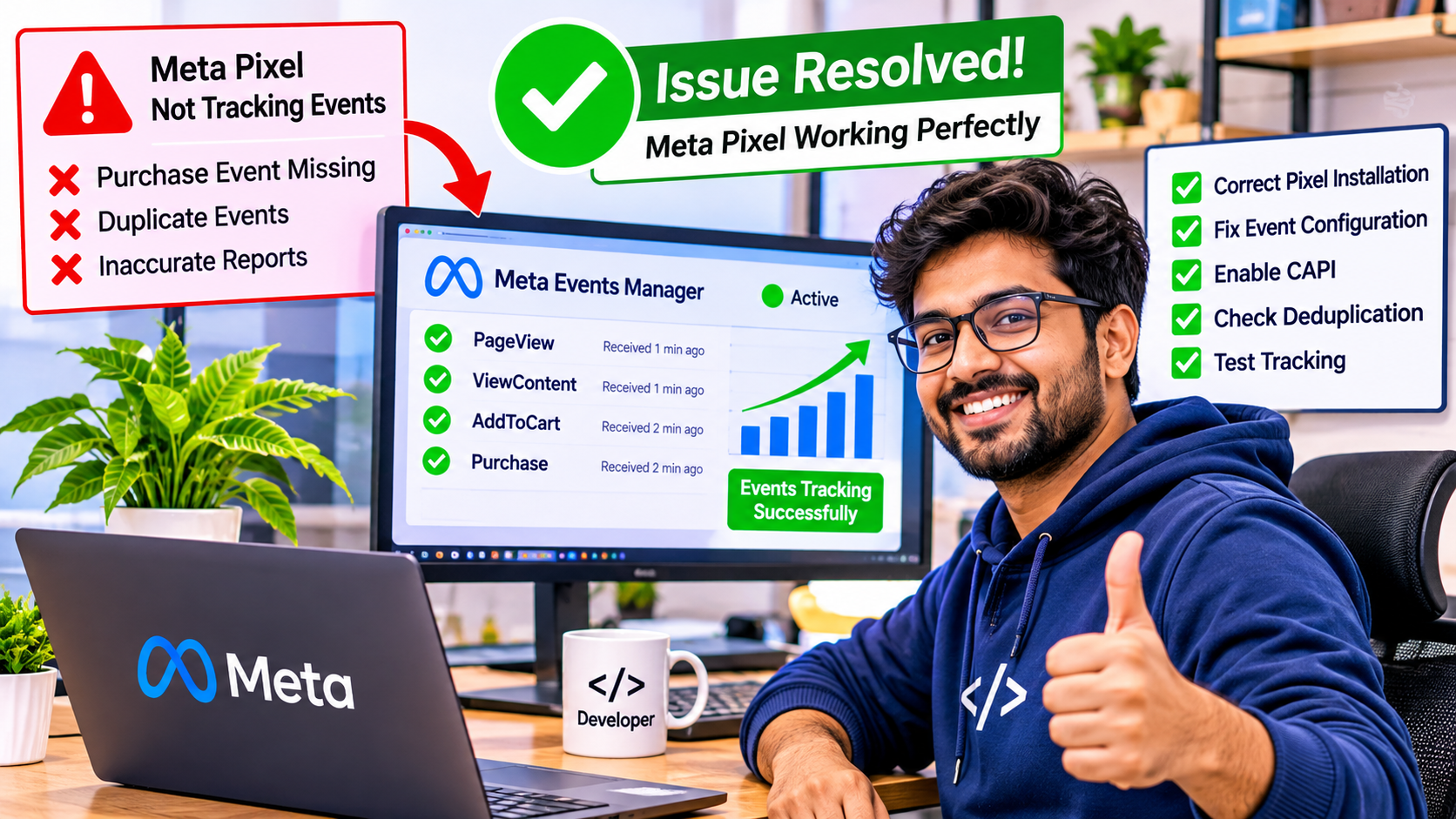
However, many businesses experience problems where Meta Pixel does not track website events correctly. Sometimes the PageView event works, but AddToCart, InitiateCheckout, Lead, or Purchase events are missing. In other situations, events appear twice, conversion numbers do not match WooCommerce orders, or Meta Events Manager shows warnings.
These problems can affect advertising reports and make it difficult to understand campaign performance.
If you use WordPress, WooCommerce, Elementor, or another website platform, understanding these tracking issues can help you identify and resolve them.
In this article, we will explore the most common reasons Meta Pixel tracking fails and how to troubleshoot them.
1. Incorrect Meta Pixel Installation
One of the most common reasons Meta Pixel does not track events correctly is incorrect installation.
Meta Pixel requires a JavaScript tracking code to be installed on your website. If the code is missing, incomplete, or placed incorrectly, Meta may not receive website activity.
Common installation mistakes include:
- Installing the wrong Pixel ID.
- Adding the tracking code to only one page.
- Installing multiple Pixel codes.
- Incorrectly configuring a plugin.
- Removing the tracking code during a theme update.
How to fix it:
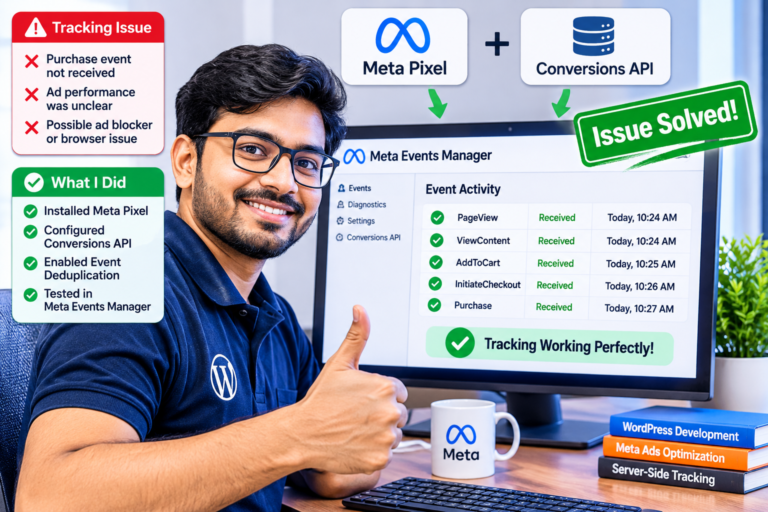
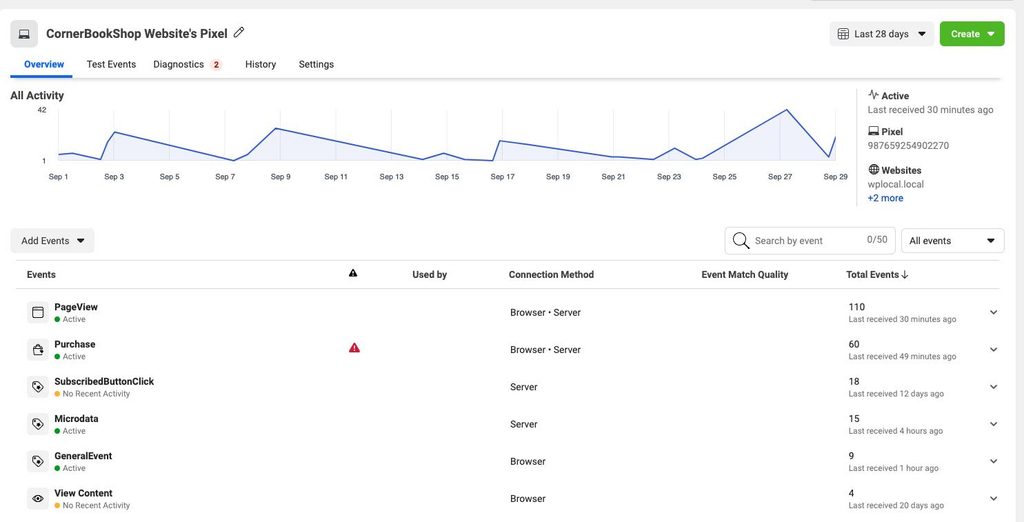
- Open Meta Events Manager.
- Select your data source.
- Check your Pixel ID.
- Open your website.
- Use the Meta Pixel Helper browser extension to inspect tracking activity.
- Confirm that the correct Pixel is detected.
For WordPress websites, you can use an appropriate integration plugin or Google Tag Manager to manage tracking.
2. Browser Privacy Settings and Ad Blockers
Modern browsers increasingly restrict third-party tracking technologies.
Browser privacy settings, ad blockers, tracking protection, and cookie restrictions can prevent Meta Pixel from collecting certain events.
For example, a visitor may browse a product page and add an item to their shopping cart, but the browser may block the tracking request.
This means the actual website activity and the events reported to Meta may not always match.
How to fix it:
- Test your website in multiple browsers.
- Check whether consent management blocks tracking before permission is given.
- Review cookie settings.
- Verify that your tracking integration follows applicable privacy requirements.
- Consider Meta Conversions API as a complementary server-side tracking solution.
Remember that server-side tracking does not bypass consent requirements or guarantee that every event will be collected.
3. Incorrect Event Configuration
Meta Pixel supports several standard events that help businesses measure customer activity.
Examples include:
| Event | Purpose |
|---|---|
| PageView | Tracks page visits |
| ViewContent | Tracks product or content views |
| AddToCart | Tracks cart additions |
| InitiateCheckout | Tracks checkout initiation |
| Lead | Tracks lead submissions |
| Purchase | Tracks completed purchases |
If events are configured incorrectly, Meta may receive incomplete or inaccurate information.
For example, a WooCommerce store may track PageView correctly but fail to send the Purchase event after successful payment.
How to fix it:
- Check event configuration in Events Manager.
- Test each important customer action.
- Confirm the correct event name.
- Check that Purchase events are triggered only after successful orders.
- Verify that event values and currency are correct.
A properly configured event structure helps improve conversion reporting.
4. Duplicate Events and Incorrect Event Deduplication
Duplicate tracking is another common Meta Pixel problem.
For example, a customer completes a WooCommerce purchase, but Meta receives two Purchase events instead of one.
This can happen when:
- Pixel is installed manually and through a plugin.
- Google Tag Manager and another plugin trigger the same event.
- Both browser and server events are sent without proper deduplication.
- A checkout confirmation page triggers Purchase more than once.
Meta Conversions API and browser Pixel can work together, but they should use matching event information.
How to fix it:
Use the same event_name and event_id for matching browser and server events. This allows Meta to identify and deduplicate corresponding events.
Avoid installing multiple tracking integrations without checking which one is responsible for each event.
5. WooCommerce Checkout and Payment Gateway Issues
WooCommerce websites sometimes experience tracking problems during checkout.
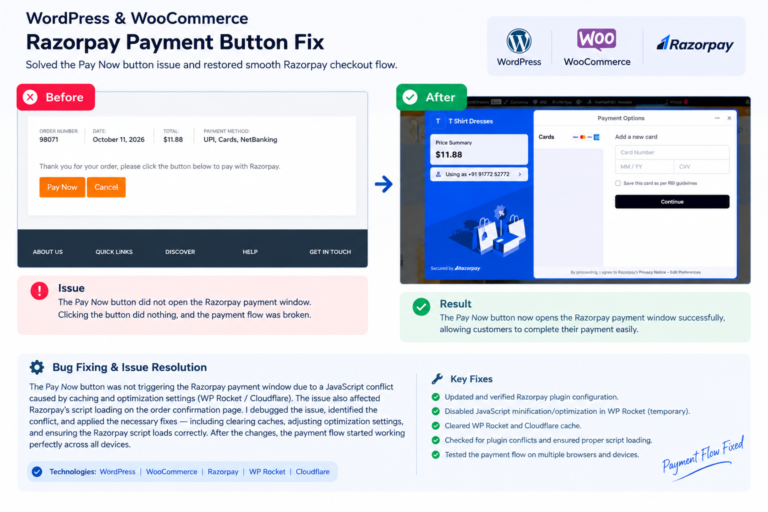
A customer may successfully pay through Razorpay, PayPal, Stripe, or another payment gateway, but Meta does not receive the Purchase event.
This can happen because:
- The payment gateway redirects customers to an external website.
- The order confirmation page does not load correctly.
- The tracking plugin does not support a particular checkout configuration.
- The Purchase event fires before payment confirmation.
- Custom checkout scripts interfere with event tracking.
How to fix it:
- Place a test order using your website’s test environment.
- Complete the payment process.
- Confirm that the customer reaches the order confirmation page.
- Open Meta Events Manager and check the Purchase event.
- Compare the event value and currency with the WooCommerce order.
- Check whether the event fires once per completed order.
For more complex WooCommerce websites, consider a properly configured server-side integration.
6. Missing or Incorrect Event Parameters
Sending an event name alone may not provide enough information for useful conversion measurement.
Meta events can include additional parameters such as:
valuecurrencycontent_idscontent_typecontentsevent_id
For example, a Purchase event should contain the correct transaction value and currency.
If your WooCommerce store sells a product for $50, but the tracking event reports $0 or an incorrect amount, your advertising reports may become unreliable.
How to fix it:
Review event parameters using Meta Events Manager and test your website with different products and order values.
Make sure the correct product IDs, currency, and transaction values are being transmitted.
7. Website Caching and JavaScript Conflicts
WordPress performance plugins such as LiteSpeed Cache and other optimization tools can sometimes interfere with tracking scripts.
JavaScript delay, script combination, minification, and deferred loading may change when tracking scripts execute.
Other possible conflicts include:
- Elementor custom JavaScript.
- Theme JavaScript errors.
- Plugin conflicts.
- Incorrect script exclusions.
- Cloudflare optimization settings.
How to fix it:
- Temporarily test with JavaScript optimization disabled.
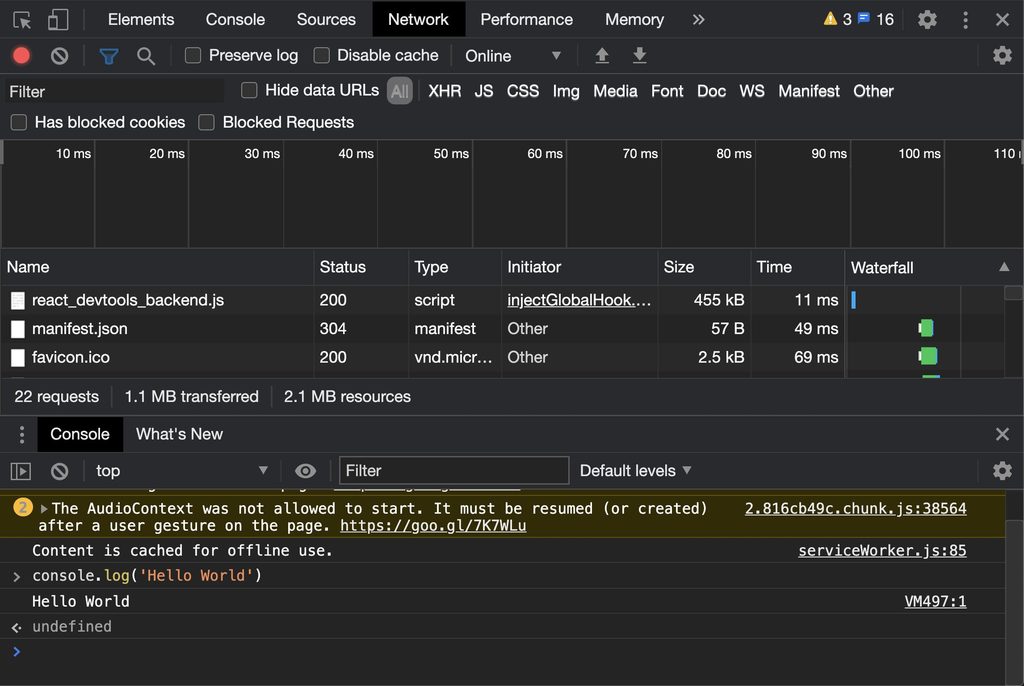
- Check the browser developer console for errors.
- Review network requests related to Meta tracking.
- Exclude essential tracking scripts from problematic optimization settings when necessary.
- Clear website and CDN caches after making changes.
Do not permanently disable performance optimization without testing the actual cause.
8. Why Meta Conversions API Is Important
Meta Conversions API (CAPI) allows websites to send event information from their servers to Meta.
Unlike browser-only tracking, server-side event transmission does not depend entirely on the visitor’s browser executing a Pixel script.
For many businesses, using both Meta Pixel and Conversions API can improve event measurement.
| Tracking method | How it works |
|---|---|
| Meta Pixel | Sends events from the browser |
| Conversions API | Sends events from the server |
| Combined tracking | Uses both methods with deduplication |
However, CAPI requires correct event configuration, consent handling, and deduplication. It cannot guarantee complete tracking.
9. Three Animated HTML Charts for Understanding Meta Pixel Problems
The following charts use HTML and CSS animations. You can add them to your WordPress article using a Gutenberg Custom HTML block.
ILLUSTRATIVE TRACKING ISSUES
Common reasons for Meta Pixel tracking problems
This illustrative chart shows how different technical issues can contribute to tracking failures. These are example values, not measured industry statistics.
Common Meta Pixel Issues
Illustrative values only, not research findings.
EVENT TRACKING COMPARISON
How tracking methods work
This visual compares browser-only tracking with combined browser and server tracking.
Event Tracking Methods
Browser Pixel
Conversions API
Combined Tracking
TRACKING TROUBLESHOOTING WORKFLOW
A practical Meta Pixel troubleshooting process
Use this animated chart to explain the order in which website owners should investigate tracking problems.
Meta Pixel Troubleshooting Steps
10. How to Test Whether Meta Pixel Is Working Correctly
Testing is essential after installing or modifying tracking.
Follow this checklist:
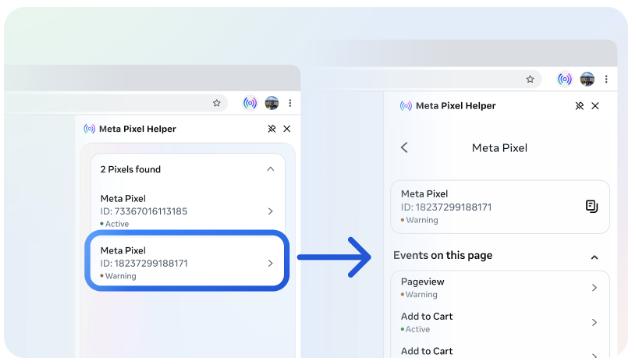
- Install the Meta Pixel Helper browser extension.
- Open your website in Chrome.
- Visit different product and service pages.
- Check whether PageView and ViewContent events are detected.
- Add a product to your WooCommerce cart.
- Start checkout and test a successful order using an appropriate test payment setup.
- Open Meta Events Manager.
- Use Test Events to inspect incoming browser and server events.
- Check for duplicate events and missing parameters.
- Confirm that event values match your website transactions.
Remember to test with appropriate consent settings and avoid using real customer personal information during testing.
Meta Pixel tracking problems can affect conversion reporting, advertising optimization, and business decisions.
Incorrect installation, browser privacy restrictions, duplicate events, missing parameters, WooCommerce checkout conflicts, and JavaScript errors are some of the most common causes.
If you run a WordPress or WooCommerce website, regularly checking your Meta Pixel configuration is important.
Combining Meta Pixel with Meta Conversions API, when properly configured, can provide a more robust tracking setup.
A correctly configured tracking system helps businesses understand website activity and make better-informed Facebook and Instagram advertising decisions.
Need help with Meta Pixel or WooCommerce tracking?
I provide WordPress development, Meta Pixel integration, Meta Conversions API, GA4 setup, and server-side tracking solutions.
Website: https://web.ebpbuy.com/
Portfolio: https://web.ebpbuy.com/#Portfolio