How to Fix WordPress CSS Issues Without Breaking Your Design
CSS controls the appearance of a WordPress website, including colors, fonts, spacing, buttons, navigation menus, and responsive layouts. When CSS stops working correctly, your website may display overlapping sections, broken layouts, incorrect fonts, or buttons that no longer match your design.
These problems can affect user experience, mobile usability, and customer confidence. Fortunately, you do not always need to redesign your website to fix them. By identifying the cause and applying targeted changes, you can repair WordPress CSS issues while protecting your existing design.
In this guide, you will learn how to troubleshoot common CSS problems, use browser developer tools, resolve styling conflicts, and test your fixes safely.
1. Identify the Cause of the CSS Problem
Before editing any code, determine what is broken. Common causes include caching, conflicting stylesheets, theme updates, page-builder settings, and plugin conflicts.
Check whether the problem affects one page or the entire website. If only one page is affected, inspect its custom CSS and individual blocks. If several pages have the same problem, investigate global styles, theme settings, and caching.
Common WordPress CSS problems include:
- Incorrect fonts, colors, or spacing.
- Buttons and navigation menus losing their styling.
- Images overflowing their containers.
- Mobile layouts breaking on smaller screens.
- Custom CSS changes not appearing on the live website.
- Elementor, Gutenberg, or Kadence Blocks layouts displaying incorrectly.
Always back up your website before making significant changes. If possible, reproduce the issue on a staging website first.
2. Clear WordPress, Browser, and CDN Caches
Caching is one of the first things to investigate when CSS changes do not appear. Your browser, WordPress caching plugin, hosting provider, or content delivery network may continue serving an older stylesheet.
Follow these steps:
- Clear your browser cache or open the website in a private browsing window.
- Purge the cache in LiteSpeed Cache or your current caching plugin.
- Clear your hosting cache if available.
- Purge the relevant Cloudflare cache if you use Cloudflare.
- Reload the page and check whether the design has updated.
If you use Elementor, regenerate its CSS files using the appropriate option available in your version. Then clear the relevant caches again.
Avoid deleting files or disabling every plugin without a clear troubleshooting plan. First determine whether an outdated stylesheet is responsible.
3. Understand Common WordPress CSS Problems
The following chart shows illustrative troubleshooting priorities. These percentages are examples, not verified industry statistics.
Common WordPress CSS Problem Areas
Plugin/theme conflicts and specificity clashes lead; caching causes many false alarms.
Caching and conflicting CSS are useful starting points when investigating a styling issue. However, the actual cause depends on your website, so inspect the affected element instead of assuming the most common explanation is correct.
4. Use Browser Developer Tools to Find CSS Errors
Browser Developer Tools help you understand why an element looks different from the intended design.
In Chrome or Firefox, right-click the affected element and select Inspect. Examine the Styles panel to see which CSS rules apply to it. A crossed-out declaration generally means another rule takes precedence.
Check the Computed panel to identify the final values for properties such as width, margin, padding, font size, and display.
For example:
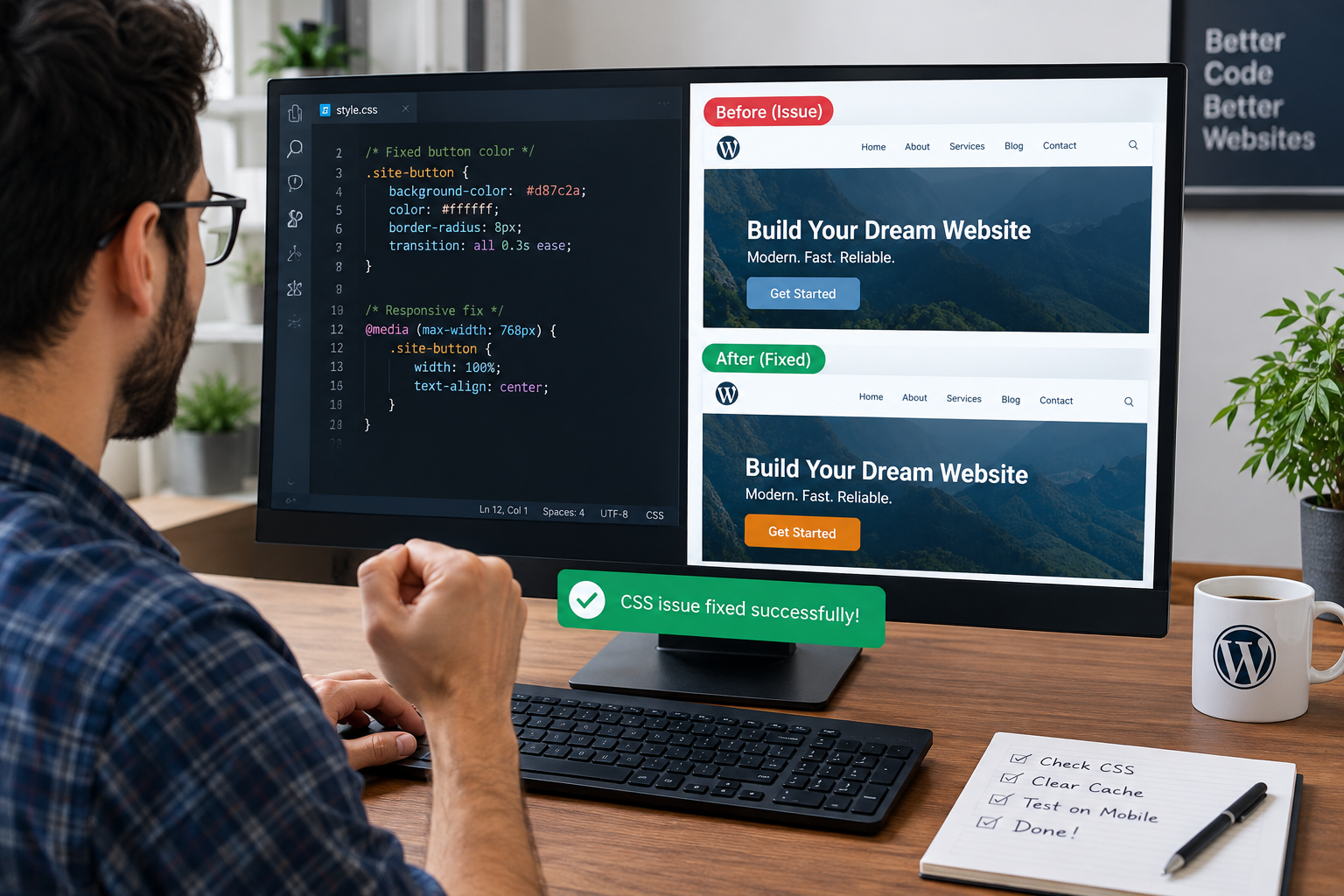
.site-button {
    background-color: #d87c2a;
    color: #ffffff;
    border-radius: 8px;
}
If a plugin or theme applies a different background color, inspect the competing selectors before changing anything.
You can also use the browser’s Console and Network panels to identify missing CSS files, failed stylesheet requests, and related errors. A missing stylesheet might indicate an incorrect URL, a deployment problem, or a generated CSS file that needs to be rebuilt.
5. Fix CSS Conflicts Without Redesigning Your Website
CSS conflicts occur when multiple styles target the same element. A theme, plugin, page builder, and custom stylesheet may all define different values for one property.
Instead of editing a plugin’s original CSS, add a targeted rule through your theme’s supported custom CSS feature or a child theme.
For example:
.site-header .site-button {
    background-color: #d87c2a;
    color: #ffffff;
}
Replace .site-header and .site-button with selectors that match your actual website.
Avoid using !important everywhere. It can override competing rules, but excessive use makes future maintenance more difficult. Try to correct the original declaration or use a suitable selector first.
Never edit parent theme files directly for permanent customizations because theme updates can overwrite your changes.
6. Compare Safe and Risky CSS Fixes
The following chart compares common troubleshooting approaches using illustrative safety scores. The scores are subjective examples, not results from a controlled experiment.
Each step up outweighs the one before it, so a class rule often loses to an ID rule.
Inspecting CSS and testing changes on staging are generally safe starting points. Targeted custom CSS can also work well when you understand the selectors involved.
Broad overrides and direct edits to parent theme files are riskier because they can affect unrelated elements or disappear during updates. Even a small CSS change should be tested on important pages.
7. Fix Responsive CSS Problems
A website that looks correct on desktop may break on mobile because of fixed widths, oversized images, long headings, or incorrect grid and flexbox settings.
Use responsive CSS to adapt the layout to smaller screens.
.content-container {
    width: 100%;
    max-width: 1200px;
    margin-inline: auto;
    padding-inline: 20px;
}

@media (max-width: 768px) {
    .content-container {
        padding-inline: 15px;
    }
}
This is an example. Adjust the selectors and breakpoint to suit your website’s existing layout.
Test your website on desktop, tablet, and mobile widths. Check navigation menus, buttons, images, forms, product cards, and checkout sections.
Avoid solving mobile problems with arbitrary negative margins. Such changes may fix one screen size while breaking another.
8. Follow a Safe CSS Troubleshooting Workflow
A structured process helps prevent accidental design changes. Make one change at a time, test the result, and keep a record of the previous working code.
Seven Steps to Fix WordPress CSS Safely
| Step | Recommended action |
|---|---|
| 1 | Back up the website |
| 2 | Reproduce and identify the issue |
| 3 | Inspect CSS and browser errors |
| 4 | Test a targeted fix on staging |
| 5 | Check desktop, tablet, and mobile |
| 6 | Deploy the fix and clear caches |
| 7 | Monitor the live website |
This workflow is suitable for many WordPress websites, including those built with Elementor, Gutenberg, Kadence Blocks, or WooCommerce. More complex problems may also require checking JavaScript errors, generated stylesheets, or plugin compatibility.
9. Test Every Fix Before Publishing
A CSS change may resolve one problem but accidentally affect other components. Review the affected page and other important sections before publishing.
Use this checklist:
- Confirm that desktop, tablet, and mobile layouts work correctly.
- Verify that navigation menus and buttons remain usable.
- Test forms and WooCommerce checkout functionality.
- Check fonts, colors, spacing, and images.
- Ensure there is no unexpected horizontal scrolling.
- Review the browser Console for new relevant errors.
- Confirm that the live website displays the latest CSS.
If the change introduces a new problem, revert it and compare the result with your backup or version history.
Never edit the parent theme’s files directly; updates overwrite them.
10. Prevent Future WordPress CSS Problems
Prevention is easier than repeatedly repairing a broken design. Keep WordPress, themes, plugins, and page builders updated, but test major changes on staging whenever possible.
Organize custom CSS into clearly labeled sections. Use consistent class names and avoid global selectors such as div, button, or h2 unless you intend to affect those elements across the website.
Document important changes and preserve the previous working code. Before major theme or plugin updates, check whether the update changes the page markup or stylesheet behavior.
Fixing WordPress CSS issues without breaking your design starts with identifying the real cause. Clear outdated caches, inspect the affected elements, resolve conflicting styles, and use responsive CSS where necessary.
Whether you use Elementor, Gutenberg, Kadence Blocks, or WooCommerce, a backup-first approach and targeted CSS changes can help preserve your existing design while resolving layout problems.
If your website still has broken layouts, inconsistent styling, or responsive design issues, a WordPress developer can investigate theme and plugin conflicts and implement a tested solution.
A stable design is not just about appearance. It also helps visitors navigate your website, use its features, and complete important actions with confidence.