What Causes WordPress PHP Warnings and How to Investigate Them
WordPress is one of the most popular website platforms because it is flexible, easy to manage, and supports thousands of plugins and themes. However, website owners sometimes encounter PHP warnings while managing their websites. These warnings can appear in the WordPress dashboard, on the frontend, or inside server error logs.
PHP warnings do not always mean that your website is broken. However, ignoring them can lead to unexpected behavior, plugin conflicts, performance problems, and compatibility issues.
Understanding what causes WordPress PHP warnings and how to investigate them can help you maintain a stable, secure, and professional website.
In this guide, we will explain the common causes of PHP warnings, how to identify their sources, and how to investigate and resolve them safely.
1. What Are WordPress PHP Warnings?
PHP is the programming language that powers WordPress. WordPress core, themes, and plugins use PHP to process information and display website content.
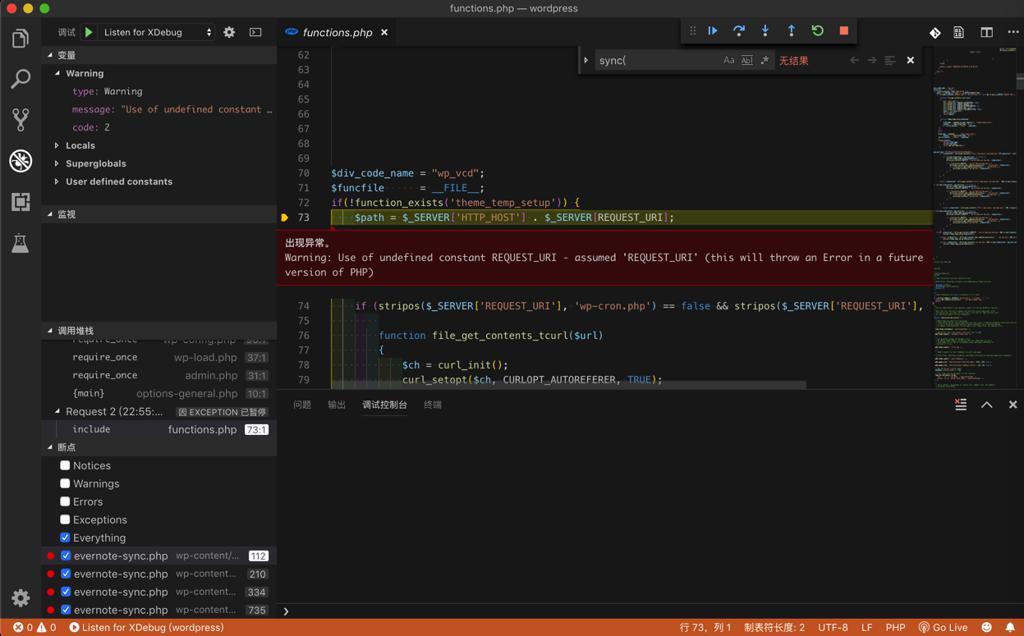
A PHP warning is a message generated when PHP encounters a problem while executing code but can continue running the script.
For example, a warning might indicate:
- An undefined variable.
- An attempt to access an array key that does not exist.
- An outdated PHP function.
- An incompatible plugin or theme.
- An incorrect function argument.
- A deprecated PHP feature.
PHP warnings are different from fatal errors. A warning usually does not stop the entire website from loading, whereas a fatal error can prevent a page or application from working.
2. Common Causes of WordPress PHP Warnings
There are several reasons why PHP warnings appear on WordPress websites.
A. Outdated WordPress Plugins
Plugins extend WordPress functionality, but outdated plugins may contain code that is incompatible with newer PHP versions.
For example, an old plugin might use a function that has been deprecated or changed in a newer PHP release.
Solution: Update plugins regularly, check compatibility information, and replace abandoned plugins with actively maintained alternatives.
B. Theme Compatibility Problems
WordPress themes control the website’s design and often include custom PHP functionality.
A poorly maintained theme or outdated custom code may generate warnings when WordPress or PHP is updated.
Common examples include undefined variables, missing array keys, and deprecated functions.
Solution: Update your theme and inspect custom PHP code. Always create a backup before editing theme files.
C. PHP Version Incompatibility
A WordPress website may work correctly on one PHP version but generate warnings after the hosting provider upgrades PHP.
For example, older code may behave differently when running on a newer PHP release.
Solution: Check the PHP requirements of WordPress, your theme, and installed plugins. Test compatibility on a staging website before changing the production environment.
D. Undefined Variables and Array Keys
Developers sometimes use variables without checking whether they contain values.
Example:
echo $user_name;If $user_name has not been defined, PHP may generate a warning.
A safer approach is:
$user_name = $user_name ?? 'Guest';

echo $user_name;
Similarly, check whether an array key exists before accessing it.
if (isset($user_data['email'])) {
    echo esc_html($user_data['email']);
}
E. Deprecated PHP Functions
PHP periodically introduces improvements and removes support for outdated functionality.
When a plugin or theme uses an outdated function, PHP may generate a deprecation notice.
Solution: Update the affected software or replace deprecated code with an appropriate modern alternative.
3. Understanding the Most Common PHP Warning Sources
The following chart illustrates an example distribution of possible PHP warning sources. These percentages are illustrative, not measured WordPress industry statistics.
Illustrative WordPress PHP Warning Sources
Example distribution for educational purposes, not actual industry measurements.
■ Custom code
■ Other issues
■ Outdated plugins
■ PHP incompatibility
■ Theme issues
This chart highlights why plugin updates, theme maintenance, and PHP compatibility checks should be part of regular WordPress maintenance.
4. How to Investigate WordPress PHP Warnings
Finding the actual source of a warning is more important than simply hiding the message.
Follow these steps to investigate PHP warnings.
Step 1: Enable WordPress Debugging
WordPress includes a debugging feature that helps developers identify PHP problems.
Open your website’s wp-config.php file using your hosting File Manager or FTP.
Find the following line:
/* That's all, stop editing! Happy publishing. */Add these settings before it:
define('WP_DEBUG', true);
define('WP_DEBUG_LOG', true);
define('WP_DEBUG_DISPLAY', false);
These settings enable debugging, save messages to a log file, and prevent PHP messages from being displayed publicly.
Recommended for investigation
Important: Use debugging carefully on a live website. Keep error display disabled, restrict access to log files, and turn debugging off after troubleshooting.
Step 2: Check the WordPress Debug Log
After enabling debugging, WordPress can record PHP messages in:
/wp-content/debug.logOpen the file and look for entries containing:
- Warning
- Deprecated
- Notice
- Fatal error
For example:
PHP Warning: Undefined array key "email"
in /wp-content/plugins/example-plugin/functions.php
on line 125
This message tells you:
- The issue is a PHP warning.
- The missing array key is
email. - The affected plugin is
example-plugin. - The code is located on line 125.
This information helps narrow down the investigation.
Step 3: Identify the Responsible Plugin or Theme
If the log identifies a plugin or theme, check whether an update is available.
If the source is unclear, test plugins individually on a staging environment.
You can also temporarily switch to a default WordPress theme to investigate whether the active theme is responsible.
Avoid deactivating important plugins on a production website without planning, because this may affect website functionality.
Step 4: Check Your PHP Version
Open your hosting control panel and locate the PHP configuration section.
Check the currently active PHP version and compare it with the compatibility requirements of your WordPress installation, theme, and plugins.
Do not upgrade or downgrade PHP blindly. Test changes on staging first.
Step 5: Review the Server Error Log
Sometimes the WordPress debug log does not contain all the information you need.
Your hosting provider may provide additional PHP error logs through:
- cPanel Error Logs.
- Hosting File Manager.
- PHP error log files.
- Server monitoring tools.
Review the timestamps to match warnings with recent website changes.
5. Three Charts to Understand PHP Warning Investigation
Visualizing the troubleshooting process makes it easier to understand where developers should focus their attention.
PHP Warning Investigation Workflow
The following chart shows a practical troubleshooting sequence.
PHP Warning Investigation Steps
Illustrative effort allocation for a troubleshooting workflow, not measured performance data.
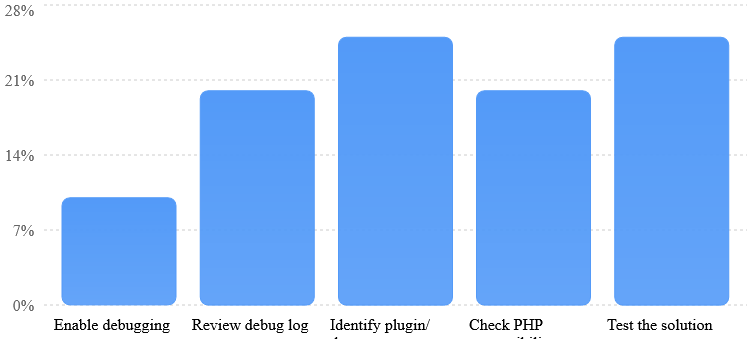
The main objective is to identify the source before making changes. Randomly editing PHP files can create additional problems.
Website Health Before and After Troubleshooting
The following is an illustrative example showing how resolving PHP warnings can improve website maintenance outcomes. It is not a benchmark or guaranteed performance result.
Illustrative Website Maintenance Improvement
Example quality scores before and after troubleshooting, not measured website data.
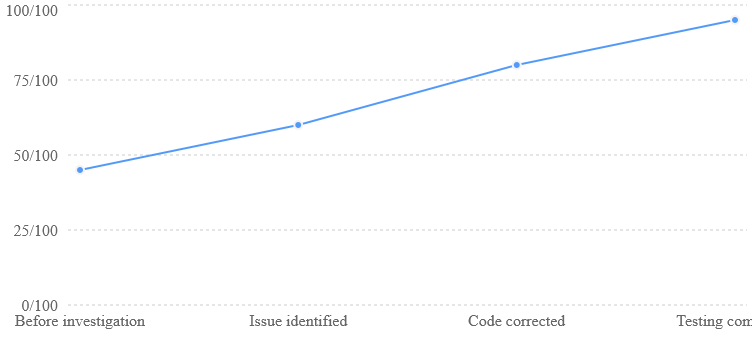
Resolving PHP warnings can make future troubleshooting easier and improve the reliability of website functionality.
6. Best Practices to Prevent WordPress PHP Warnings
Preventing PHP warnings is easier than repeatedly troubleshooting the same issues.
Follow these maintenance practices:
- Update WordPress regularly: Keep WordPress core, plugins, and themes updated.
- Use trusted plugins: Install plugins from reputable developers and avoid abandoned software.
- Check PHP compatibility: Test PHP upgrades before applying them to your live website.
- Use a staging environment: Test new updates and custom code before deployment.
- Create regular backups: Maintain database and website file backups.
- Monitor error logs: Review server logs periodically to identify new problems.
- Follow coding standards: Use proper PHP validation, sanitization, and escaping techniques.
- Avoid unnecessary plugins: Remove plugins that are no longer required.
These practices help reduce compatibility issues and make WordPress websites easier to maintain.
7. When Should You Hire a WordPress Developer?
Some PHP warnings are simple and can be fixed through plugin updates. Others require technical investigation.
Consider professional WordPress development support when:
- PHP warnings continue after plugin updates.
- Your website displays unexpected content.
- WooCommerce checkout functionality stops working.
- Custom plugins generate repeated warnings.
- A PHP upgrade causes compatibility problems.
- Your website experiences plugin or theme conflicts.
- You cannot identify the source of the warning.
A WordPress developer can inspect error logs, investigate the affected code, identify compatibility problems, and implement a safe solution.
For business websites and online stores, resolving these issues early can help prevent larger technical problems.
WordPress PHP warnings are common, especially on websites using multiple plugins, custom themes, and third-party integrations.
However, these warnings should not be ignored. They can indicate outdated code, compatibility issues, or programming mistakes that may affect website functionality.
The best approach is to enable WordPress debugging safely, inspect error logs, identify the responsible component, and test the solution before applying changes to your live website.
Regular updates, backups, PHP compatibility checks, and professional maintenance can help keep your WordPress website stable and reliable.
Need help investigating WordPress PHP warnings? Professional WordPress troubleshooting can help identify plugin conflicts, PHP compatibility issues, and custom-code problems before they affect your business website.