How to Troubleshoot WordPress Plugin Conflicts
WordPress powers millions of websites, from business websites and blogs to WooCommerce stores. Plugins extend WordPress functionality, but compatibility issues can sometimes affect website performance, design, security, and essential features.
WordPress Plugin Conflicts occur when two or more plugins interfere with each other or when a plugin is incompatible with WordPress, the active theme, the PHP version, or another component.
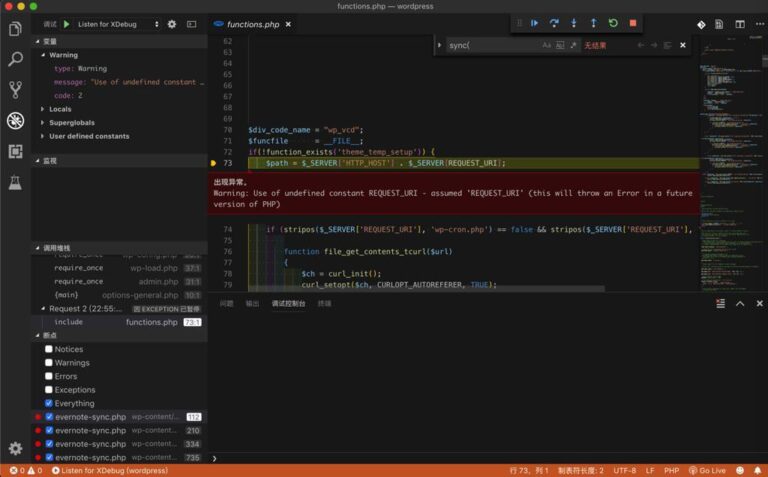
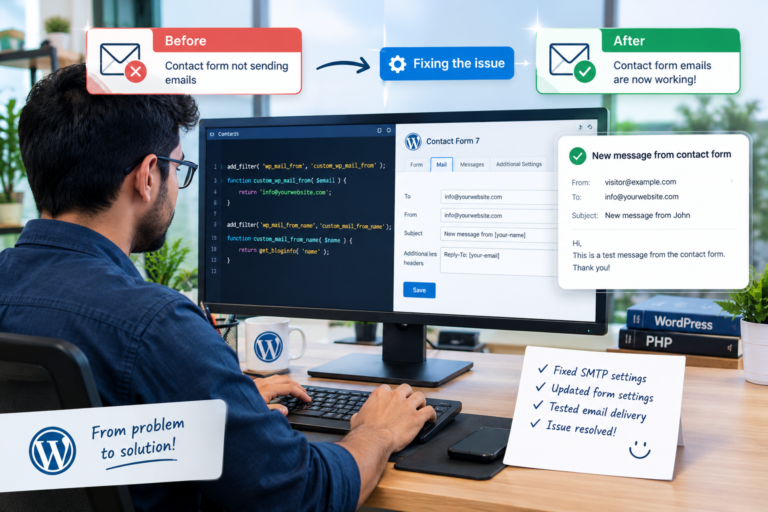
Common symptoms include broken layouts, blank screens, PHP errors, slow loading pages, failed form submissions, and checkout problems.
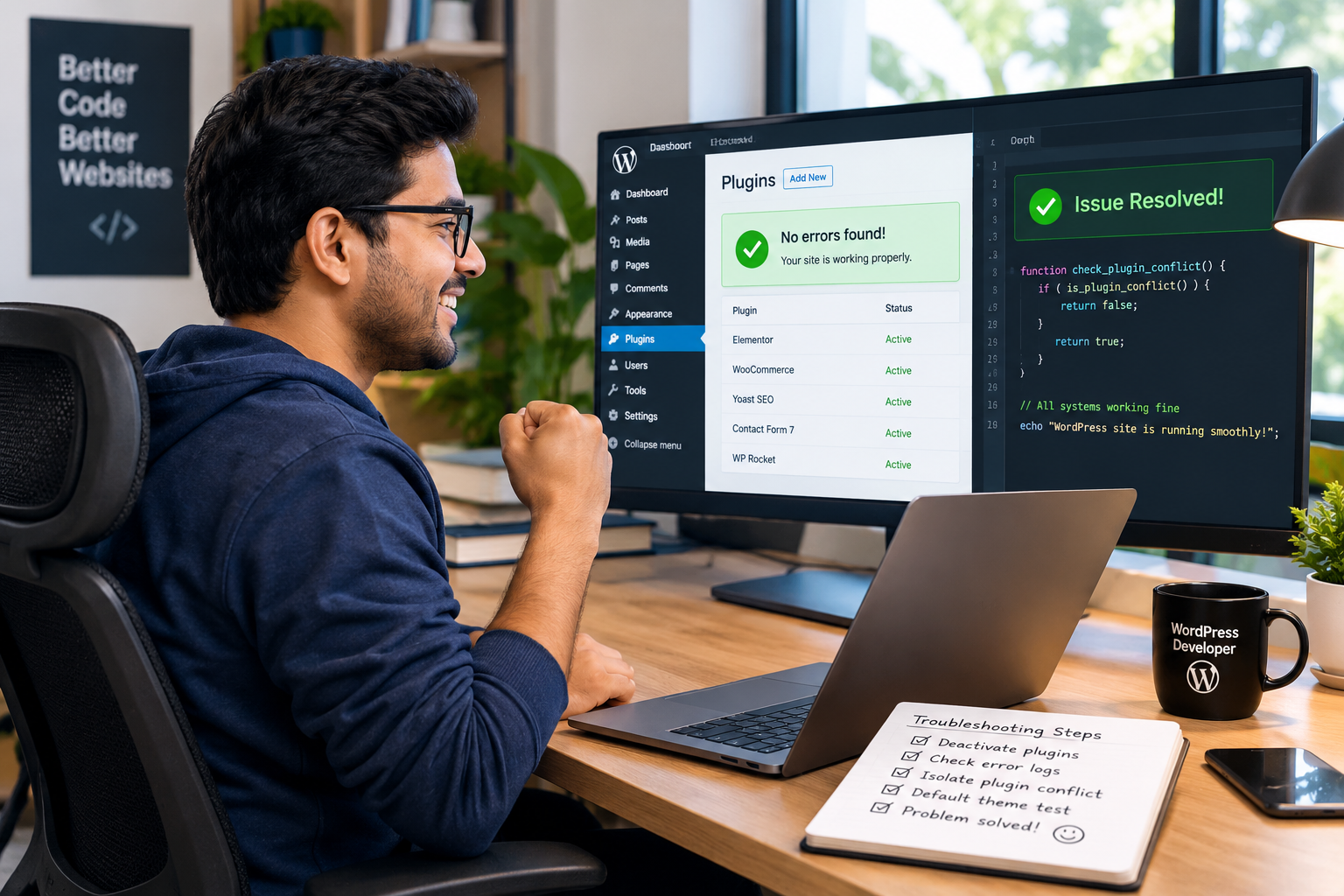
In this guide, you’ll learn how to deactivate plugins safely, troubleshoot WordPress errors, isolate plugin conflicts, and perform a default theme test.
What Causes WordPress Plugin Conflicts?
Common causes include outdated plugins, incompatible software versions, JavaScript errors, conflicting CSS, and plugins that modify the same functionality.
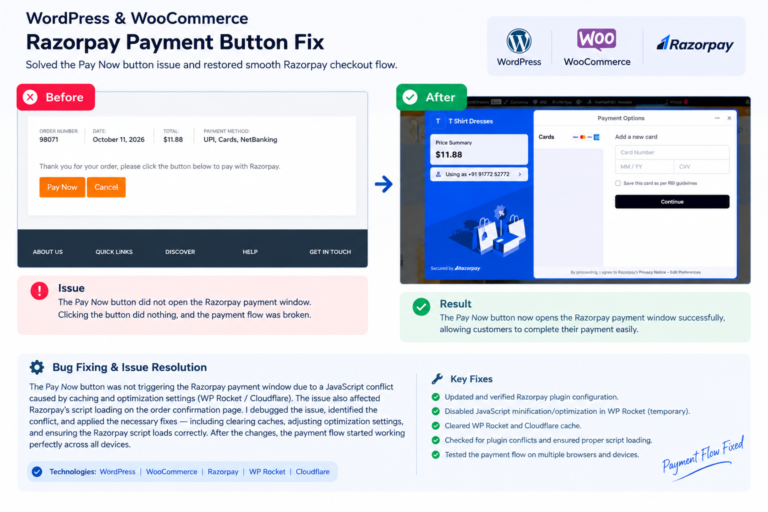
For example, a caching plugin may delay a payment gateway’s JavaScript, causing a checkout button to stop working. Another plugin might interfere with form submissions or website styling.
Chart 1: Common WordPress Plugin Conflict Symptoms
The following graph uses illustrative data for 100 hypothetical troubleshooting cases. It is not based on measured industry statistics.
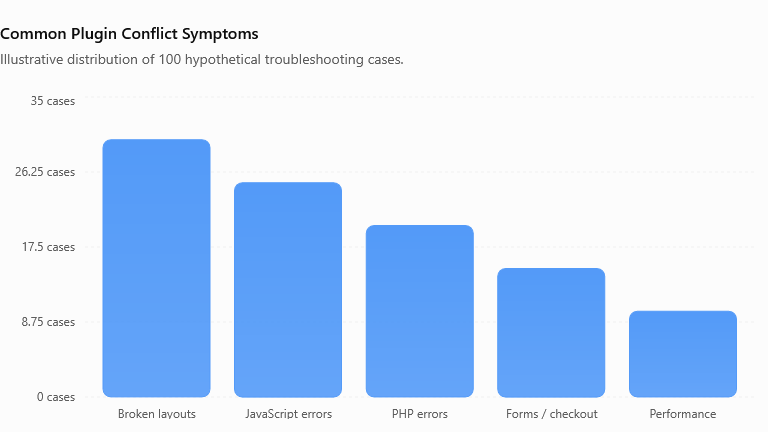
Use the bar chart here to show which symptoms a developer might investigate first.
Step 1: Deactivate Plugins Safely
The first step in troubleshooting WordPress plugin conflicts is to determine whether a plugin is responsible.
Before making changes, create a complete backup of your website, including files and the database. Whenever possible, use a staging website to avoid affecting visitors or customers.
Follow these steps:
- Log in to your WordPress dashboard.
- Navigate to Plugins → Installed Plugins.
- Deactivate suspected plugins, starting with recently installed or updated plugins.
- Clear relevant caches.
- Reload the affected page and test the feature.
- If the issue disappears, investigate the deactivated plugins to identify the cause.
Avoid deactivating essential plugins on a live WooCommerce store without considering the impact on checkout, payments, shipping, and inventory.
If the dashboard is inaccessible, hosting file manager or FTP access may help with troubleshooting. Proceed cautiously because disabling plugin folders can affect essential website functionality.
Step 2: Troubleshoot WordPress Error Messages
Error messages can help identify the source of a problem.
- Critical error: May indicate a PHP fatal error or incompatible plugin.
- White screen: May be caused by a PHP error or server resource issue.
- JavaScript errors: May indicate incompatible scripts or blocked resources.
- 403 error: May involve security rules, permissions, or firewall settings.
- 500 error: May indicate a PHP failure or server configuration problem.
- Failed form submissions: May involve JavaScript, validation, AJAX, or server-side processing.
Open the affected page and press F12 to access browser developer tools. Check the Console tab for JavaScript errors and the Network tab for failed requests.
On a staging site, WordPress debugging can also help. Add these settings to wp-config.php before the final stop-editing comment:
define( 'WP_DEBUG', true );
define( 'WP_DEBUG_LOG', true );
define( 'WP_DEBUG_DISPLAY', false );
Review wp-content/debug.log for relevant errors. Disable debugging after troubleshooting and do not expose sensitive logs publicly.
Step 3: Isolate Plugin Conflict
Once a plugin issue is suspected, isolate the conflict to identify the exact cause.
- Make a list of active plugins.
- Deactivate nonessential plugins on staging.
- Test the affected functionality.
- Reactivate plugins individually, testing after each activation.
- Record which activation causes the problem to return.
- Repeat the test to confirm the result.
If the website has many plugins, deactivate approximately half of the suspected plugins and test again. Narrow down the group systematically. Some conflicts only occur when two plugins run together, so test relevant combinations if individual plugins work correctly.
Chart 2: WordPress Plugin Conflict Troubleshooting Workflow
Insert the workflow graph here to show readers the troubleshooting sequence:
Back up website → Deactivate suspected plugins → Test affected page → Isolate the plugin → Perform a default theme test → Apply the fix → Retest the website
This process helps developers investigate the cause systematically instead of making random changes.
Step 4: Perform a Default Theme Test
A plugin is not always the only cause. Your active theme may contain custom code or scripts that interfere with a plugin.
A default theme test helps determine whether the theme contributes to the problem.
- Back up the website and use staging whenever possible.
- Install a compatible official WordPress default theme, such as Twenty Twenty-Five.
- Temporarily activate the default theme.
- Test the affected page, form, or checkout.
- If the issue disappears, investigate the original theme and its custom CSS, JavaScript, or PHP.
- Restore your original theme after testing.
Changing themes can affect menus, layouts, widgets, and theme-specific functionality, so test carefully on business websites.
Chart 3: Example Troubleshooting Time Allocation
The following graph illustrates how a developer might allocate 100 minutes to an investigation. These are example planning figures, not industry benchmarks.
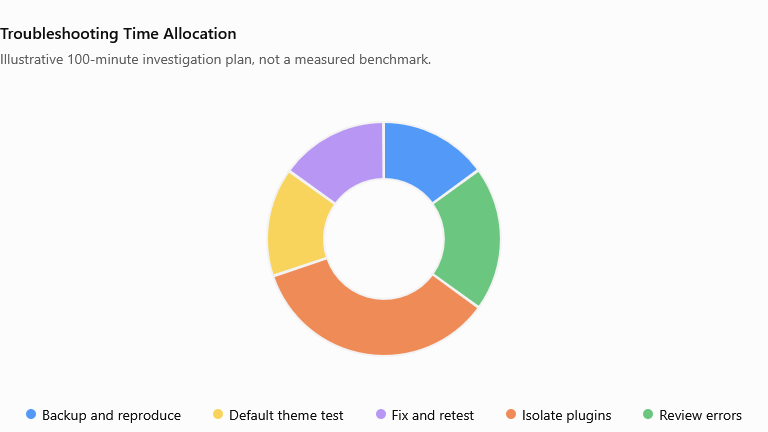
Insert the time-allocation graph here.
The example emphasizes the importance of isolating the conflict and confirming the fix. Actual troubleshooting time varies depending on website complexity and the severity of the issue.
How to Fix WordPress Plugin Conflicts Permanently
Once you identify the source, choose the appropriate solution:
- Update the affected plugin, theme, and WordPress installation after compatibility testing.
- Replace abandoned or incompatible plugins with maintained alternatives.
- Contact the plugin developer with reproducible steps and relevant error logs.
- Adjust caching or JavaScript optimization settings if they cause the conflict.
- Correct custom PHP or JavaScript when the problem originates from custom development.
- Avoid editing plugin core files because updates may overwrite your changes.
After applying the fix, test the website’s important pages, mobile layouts, forms, login functionality, and checkout where applicable.
How to Prevent Future Plugin Conflicts
Follow these practices to reduce future problems:
- Install only necessary plugins.
- Review compatibility information and support activity before installation.
- Keep WordPress, plugins, and themes updated using a tested process.
- Back up the website before major updates.
- Test significant changes on staging.
- Avoid multiple plugins that perform the same task.
- Monitor error logs and regularly test important features.
WordPress Plugin Conflicts can affect website design, performance, and business functionality. A systematic troubleshooting process makes it easier to identify and resolve the cause.
Start by backing up the website, deactivating suspected plugins, and reviewing error messages. Next, isolate the problematic plugin and perform a default theme test. Finally, apply a permanent fix and retest the website.
If a plugin conflict affects your business website, an experienced WordPress developer can help investigate the issue safely and restore reliable functionality.